Microsoft disabled short filenaming (8.3) by default starting with Windows 8 / Server 2012. However, this week I ran into a situation where we were unable to write files to a folder that already contained 2.2 million files on a 2008 server. It is easy to argue that a software design that dumps millions of files into a single folder is flawed, sometimes we find ourselves in situations that we cannot fix with design at the time. I attempted to defrag the folder and MFT with contig.exe, without success. A chkdsk didn't help, so I began moving the files to a new folder. This went very fast, but once I got near 1 million files, it slowed to around 6,000 files per hour. I tried robocopy, move, PowerShell's move-item, and nothing was making it any faster.
I found some references to disabling 8.3 short file names (https://support.microsoft.com/en-us/kb/121007), and gave it a shot. This was a 2008 server, and not 2008 R2, so I couldn't take advantage of the fsutil command, even though it references that Operating System in the article. I used this article (https://technet.microsoft.com/en-us/library/cc778996.aspx) to manually set the registry entry for NtfsDisable8dot3NameCreation to 3. After a reboot, the move went from 6,000 files per hour, to 1 million files in 30 minutes!
So if you do not have a need for short filenames on your servers where you have a large number of files (more than 30,000) in a single folder, I highly recommend revisiting this old subject and making a switch. If you can use 2008 R2's fsutil to execute the strip command and remove the short filenames, even better. If you are on a 2008 or prior server, then moving the files to a different directory, should be sufficient to remove the short filenames, then rename that directory to match the old name.
Sunday, November 22, 2015

Tuesday, September 29, 2015
Find Users Logged In To Servers
Many times I've been put in a situation of trying to find users logged into servers. Most recently, it was for someone who changed their password and kept getting locked out. Rather than go through the event viewer on the DC to find the computer, and then go log them off, just to do it all over again, I would much rather just have a list of every server the person is logged into. There are ways to do this with PowerShell, but I've never had much luck when it came to spanning servers from 2003 to 2012 R2. It seems like some commands work on different versions, and getting all the info from the servers was getting pretty complicated. I steps below take just a few minutes, most of which ends up being just downloading the utilities.


I choose Ping again every 2 seconds, and once I get a list of my servers after 10 pings, I sort by succeeded count, and copy the ones that are responding to ping into Excel. I copy the computer name column, and paste it into notepad and save it as C:\data\servers.txt. This file comes in very handy for not only the next step, but for using in scripting any variety of commands that need to reference a list of servers with something like the import-csv command.

First, create a list of servers.
I do this with 2 utilities. The first is AD Info, an awesome reporting utility that even has lots of value in the free version. http://www.cjwdev.com/Software/ADReportingTool/Info.html. Easily worth $59 for the full version, though. Run a report on Computers, Computers with Specified Operating System. Put in Server, and you'll get a list. Right-click the Name column, and choose Copy Full Column.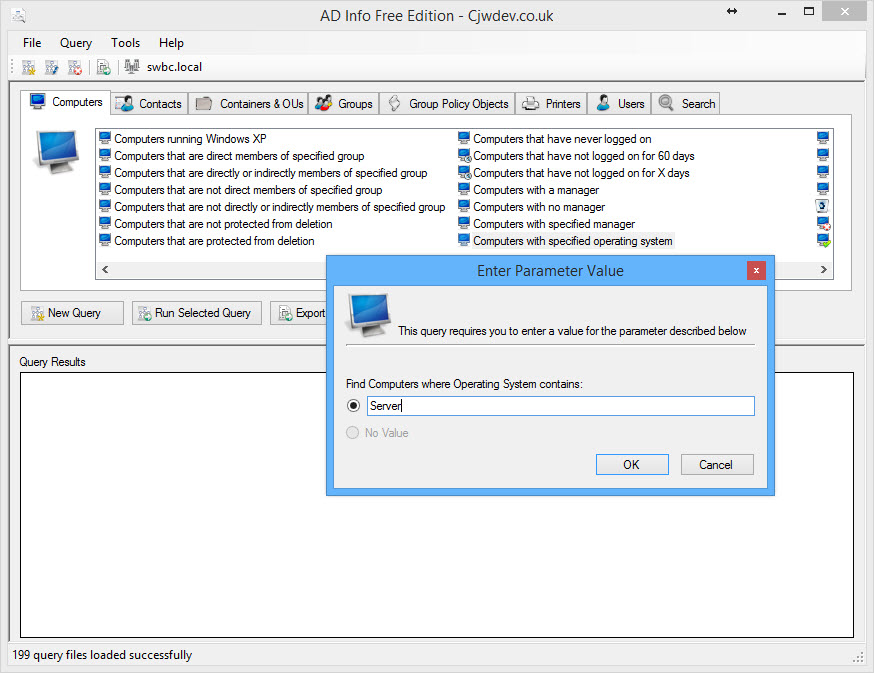
Next, ping the list of servers.
Download PingInfoView http://www.nirsoft.net/utils/multiple_ping_tool.html, and paste in the list of server names.
I choose Ping again every 2 seconds, and once I get a list of my servers after 10 pings, I sort by succeeded count, and copy the ones that are responding to ping into Excel. I copy the computer name column, and paste it into notepad and save it as C:\data\servers.txt. This file comes in very handy for not only the next step, but for using in scripting any variety of commands that need to reference a list of servers with something like the import-csv command.
Prepare and Run the command.
I open a command prompt, and set the Screen Buffer Size Height to 9999.
Then I execute the following command, which begins to query the servers.
for /f "tokens=1 delims= " %a in (C:\data\servers.txt) do query session /SERVER:%a
Once the command is done, I just right-click within the command prompt window and choose Select All. I then right-click again, which does a copy. I then paste that into notepad, and do a search on users names.
for /f "tokens=1 delims= " %a in (C:\data\servers.txt) do query session /SERVER:%a
Once the command is done, I just right-click within the command prompt window and choose Select All. I then right-click again, which does a copy. I then paste that into notepad, and do a search on users names.
Note: If you are using privileged accounts (and I hope that you are), then you will need to run your command prompt as the admin user in order to get the proper session information from all the servers.
Tuesday, July 14, 2015
Allow managers to view calendars of their direct & indirect reports - Exchange 2013
I was recently given two tasks and thought I'd share what I came up with to help at least one poor soul out there.
Task 1: Add permissions for each manager in IT to have reviewer permissions to the calendar of their direct and indirect reports. I also wanted to check membership of a group that already has permissions and skip them. I came up with the following script, with some caveats.
- There are probably cleaner ways of accomplishing the task, but it was simple and worked.
- This adds permissions, but does not remove permissions if someone changes manager. Since it is just reviewer permission, and we didn't want to mess with permissions anyone else had already granted to their manager, we accepted that risk.
- It only goes 5 levels deep.
- Someone can get around this by just assigning their manager a permission level of none.
Clearly this isn't full-proof, but to save some time and get some permissions added, it does okay.
The $MGR grabs the users manager to assign the permission. The $MGRMEM grabs the manager's group membership to see if they are in the group I want to exclude.
get-aduser -filter {department -eq "Information Technology"}|Foreach-Object {
$MGR = (get-aduser -Identity $_.SamAccountName -properties *).manager
$MGRMEM = (get-aduser $MGR -properties *).memberof
$MGR2 = (get-aduser $MGR -properties *).manager
$MGRMEM2 = (get-aduser $MGR2 -properties *).memberof
$MGR3 = (get-aduser $MGR2 -properties *).manager
$MGRMEM3 = (get-aduser $MGR3 -properties *).memberof
$MGR4 = (get-aduser $MGR3 -properties *).manager
$MGRMEM4 = (get-aduser $MGR4 -properties *).memberof
$MGR5 = (get-aduser $MGR4 -properties *).manager
$MGRMEM5 = (get-aduser $MGR5 -properties *).memberof
If (!($MGRMEM -like "*CN=CalendarAdminAccess*"))
{
Add-MailboxFolderPermission ${_}:\Calendar -User $MGR -AccessRights Reviewer
}
If (!($MGRMEM2 -like "*CN=CalendarAdminAccess*"))
{
Add-MailboxFolderPermission ${_}:\Calendar -User $MGR2 -AccessRights Reviewer
}
If (!($MGRMEM3 -like "*CN=CalendarAdminAccess*"))
{
Add-MailboxFolderPermission ${_}:\Calendar -User $MGR3 -AccessRights Reviewer
}
If (!($MGRMEM4 -like "*CN=CalendarAdminAccess*"))
{
Add-MailboxFolderPermission ${_}:\Calendar -User $MGR4 -AccessRights Reviewer
}
If (!($MGRMEM5 -like "*CN=CalendarAdminAccess*"))
{
Add-MailboxFolderPermission ${_}:\Calendar -User $MGR5 -AccessRights Reviewer
}
}
Note: The curly brackets are used to enclose the value {_} because the distinguished name is returned and can have spaces in it.
Task 2: A much simpler task, I was asked to create a group and assign permissions so members of the group are granted Reviewer access to all IT Department calendars, regardless of whether they are in their management chain or not.
get-aduser -filter {department -eq "Information Technology1"}|Foreach-object{Add-MailboxFolderPermission ${_}:\Calendar -User ITCalendarAdminAccess -AccessRights Reviewer}
Note: The group should be a Distribution Group, or a mail-enabled Security Group.
This is pretty simple stuff as far as PowerShell goes, so I know I'm not shocking the world or anything. Just wanted to share in case someone finds it of use.
Tuesday, June 9, 2015
Tip: Speed Up Snapshot Based Exchange DAG Backups (Veeam, CommVault, etc.)
I was struggling with performance issues with my Exchange 2013 DAG backups, mainly due to storage contention during the snapshot commit (remove snapshot). We have a node that contains only passive copies that we are using strictly for backup. I first tried to put the node into maintenance mode, which helped a little. I decided to try suspending the database copies during the backup and that made a huge difference.
Time to delete snapshot on passive node:
Normal: 1.5 to 3 hours
Maintenance Mode: 45 minutes to 1 hour
Mailbox Database Copy Suspended: 2-3 minutes!!!
Analysis: Having a Node of the DAG that only contains passive copies of the databases helps reduce the impact of the backup on production users. Putting that node into maintenance mode prevents log files from being played into the databases, but they are still copied to the VM. Suspending the database copies prevents the logs from even being sent to the node, so there are very few changes during the backup. Since from what I have seen, writes typically impact storage performance in a greater capacity, the backup itself (just reading the data) goes pretty well, then deleting the snapshot (combining the snapshot data back into the main disk), really thrashes the storage. By minimizing changes to the disk during the backup, the snapshot commit has very little to do and goes very quickly.
Note: We use Veeam, and I tested a restore of an Incremental Backup using this method and was able to restore and view and restore emails with the Veeam Explorer for Microsoft Exchange with the database suspended.
I first tried this process manually and after it worked, I created a script to do the suspend and resume. My scripts are running on the Exchange Server itself, but you could certainly do this within the Veeam job under the Advanced Settings, Advanced Tab, then Job Scripts.
StartBackup.ps1
get-mailboxdatabasecopystatus -server passivenode|Suspend-MailboxDatabaseCopy -SuspendComment "Backup" -Confirm:$False
StopBackup.ps1
get-mailboxdatabasecopystatus -server passivenode|Resume-MailboxDatabaseCopy -Confirm:$False
Disclaimer: Attempt at your own risk. While I have tested this and it is working well for me, attempt first in a lab...yeah...like everyone has one of those. At the very minimum, run through your own backup/restore test to make sure it doesn't impact your ability to do the restores you want.
Time to delete snapshot on passive node:
Normal: 1.5 to 3 hours
Maintenance Mode: 45 minutes to 1 hour
Mailbox Database Copy Suspended: 2-3 minutes!!!
Analysis: Having a Node of the DAG that only contains passive copies of the databases helps reduce the impact of the backup on production users. Putting that node into maintenance mode prevents log files from being played into the databases, but they are still copied to the VM. Suspending the database copies prevents the logs from even being sent to the node, so there are very few changes during the backup. Since from what I have seen, writes typically impact storage performance in a greater capacity, the backup itself (just reading the data) goes pretty well, then deleting the snapshot (combining the snapshot data back into the main disk), really thrashes the storage. By minimizing changes to the disk during the backup, the snapshot commit has very little to do and goes very quickly.
Note: We use Veeam, and I tested a restore of an Incremental Backup using this method and was able to restore and view and restore emails with the Veeam Explorer for Microsoft Exchange with the database suspended.
I first tried this process manually and after it worked, I created a script to do the suspend and resume. My scripts are running on the Exchange Server itself, but you could certainly do this within the Veeam job under the Advanced Settings, Advanced Tab, then Job Scripts.
StartBackup.ps1
get-mailboxdatabasecopystatus -server passivenode|Suspend-MailboxDatabaseCopy -SuspendComment "Backup" -Confirm:$False
StopBackup.ps1
get-mailboxdatabasecopystatus -server passivenode|Resume-MailboxDatabaseCopy -Confirm:$False
Disclaimer: Attempt at your own risk. While I have tested this and it is working well for me, attempt first in a lab...yeah...like everyone has one of those. At the very minimum, run through your own backup/restore test to make sure it doesn't impact your ability to do the restores you want.
Friday, June 5, 2015
Don't put your NETLOGON share and GPOs at risk...check this ASAP!
A very important Active Directory upgrade is being missed by organizations far and wide. Many aren't even aware it is a step that needs to be taken, others make the assumption that it is just done for them. What I'm talking about is the migration from FRS to DFSR for SYSVOL replication. Last year Microsoft announced that they are removing FRS from Windows Server, but that announcement seemed to be largely ignored. Here's why this is important:
So please just check and see if you are still on FRS, or have migrated to DFSR.


- If you have a domain that has ever been at a Windows Server 2003 Domain Functional Level or prior, then you have used FRS for SYSVOL replication. This would be the vast majority of domains being used today.
- Migrating from FRS to DFSR for SYSVOL replication is not automatic, regardless of whether you upgrade your Domain Controllers or raise your Functional Levels.
- FRS is antiquated and unreliable for replication.
- If you haven't migrated, FRS is replicating your NETLOGON share (usually filled with login scripts and other miscellaneous items) and all your Group Policy Objects.
I apologize for the ridiculous font and size, but I'm afraid that most people don't understand the necessity in migrating from FRS to DFSR because they don't really understand what is contained within the SYSVOL. Most will know it sounds familiar, but don't realize that NETLOGON and all their GPOs are contained within this folder. I don't put cheap gas in my Ferrari *cough* Kia. Okay...usually I do, but I don't want FRS replicating stuff in my Active Directory that is so critical.
So please just check and see if you are still on FRS, or have migrated to DFSR.
Note: If you aren't running at least Windows Server 2008 Domain Functional Level, then you are definitely using FRS.
- On a Domain Controller, Open PowerShell and run "get-addomain|fl Name,DomainMode"
- You are looking for Windows2008Domain or higher

- Next, run "netdom query fsmo" to find your PDC Emulator.

- On the PDC Emulator DC, run dfsrmig /getglobalstate and dfsrmig /getmigrationstate
- If you have been migrated, you are looking for a global state of Eliminated

- If you see a message that the DFSR migration has not initialized, or get global states of Start, Prepared, or Redirected, then you definitely have some work to do.
I highly recommend these two articles as excellent sources of FRS to DFSR migration information.
Tuesday, June 2, 2015
Very cool free AD Replication Status Tool from Microsoft
Not sure how I missed this, but today I stumbled across the Active Directory Replication Status Tool when reading an article by Ned Pyle from Microsoft about FRS to DFSR migrations.
This tool satisfies my top 3 requirements for a utility:

This tool satisfies my top 3 requirements for a utility:
- It is free
- It has useful information in a clean and easy to use interface
- It isn't bloated unnecessarily (12MB post installation!)
The tool can be downloaded here: https://www.microsoft.com/en-us/download/details.aspx?id=30005
There really isn't much to say about the tool, as it is very self-explanatory when you open it. Select Forest, Domain, or Select Targets to specify just a few Domain Controllers. When you choose Refresh Replication Status, look for the Last Sync Message, Last Successful Sync, and Consecutive Failure Count columns to see how things are doing. You can click Errors Only at the top, and hopefully that will show you an empty screen.
This certainly will not substitute for a good AD Health Check. Neither will this tool fix any issues you find...like...I don't know...someone powers off a Domain Controller they are having problems with and the KCC is like, "What the heck, dude?"
For the "Real men use the command line" crowd, there is nothing this tool does that you can't do yourself with repadmin, powershell, and some time. You can stroke your red swingline stapler and ignore this blog post.
I do think using screenshots of this tool for documentation purposes could certainly up a SysAdmin's street cred...and who doesn't need that?
Monday, April 6, 2015
Install Exchange Server 2013 Management Tools when there is no DC at your site
Trying to install the Exchange 2013 Management Tools, I kept receiving an error that setup couldn't proceed because "Setup must use a domain controller in the same site as this computer". The log files indicated "Failed [Rule:DomainControllerIsOutOfSite]". I was trying to install these tools onto a computer in a Site that did not have a DC. Using the unattended setup with /DomainController didn't help, as it wasn't that it couldn't find a DC, but there was no DC in my site. Unfortunately for me, sites were setup for SCCM, and some didn't have DCs. Here is how I finally worked around it and installed the Management Tools quickly, with only changes to the PC - no reboot required.
1. Navigated to HKLM\System\CurrentControlSet\Services\Netlogon\Parameters in the Registry Editor.
2. Created a new String Value (REG_SZ), called SiteName, with a value of the Site where the DC was located.
3. Kicked off the installation again, which completed successfully.
4. Deleted the SiteName registry entry after verifying the Management Tools were installed.

Would this work on a full server installation? Possibly. However, I certainly wouldn't recommend attempting it for anything other than a critical system outage situation.
Subscribe to:
Posts (Atom)