Tuesday, August 7, 2018

PowerShell script to find all services using domain credentials

Whether it's changing a service account password, or looking for admins running service accounts under their own credentials, this script will come in handy. If you put a list of computer names or IP addresses in a servers.txt file, you can grab all services that have an account configured with your domain name or upn.

Import-csv C:\temp\servers.txt|foreach-object{
get-wmiobject win32_service -ComputerName $_.Server |?{$_.Startname -like "*Domain*" -or $_.Startname -like "*UPNSuffix*"}|select PSComputerName,Name,Started,State,StartName,Description|export-csv C:\temp\services.csv -append -notypeinformation
}
Results:

Thursday, May 3, 2018

User Home Drive Report


I was tasked with creating a report on our user home drives of information on every file, such as name, size, modified date, file extension, etc. They also wanted to include information on the user, including things like their name, location, department, and title. Since the home drives are created with the username, it made it pretty easy.

Get-ChildItem "\\fileserver\users$" |Where-Object {$_.psiscontainer -eq $true}|Select-Object -First 10|ForEach-Object{
 Get-ChildItem $_.FullName -Recurse -ErrorAction SilentlyContinue|Where-Object {$_.psiscontainer -eq $false}|Foreach-Object{
  $EID = $_.FullName
  $EID = $EID.Trim("\\\\fileserver\\users$\\")
  $EID = $EID.Substring(0,6)
  $User = (get-aduser $EID -Properties GivenName,Surname,Title,StreetAddress,Department,HomeDirectory)
  $UName = $User.GivenName + " " + $User.Surname
  $Server=$_.FullName.Trim("\\\\")
  $Server=$Server.Split('\\')[0]
 
$props = @{
    EmployeeID = $EID
    UserName = $UName
    UserTitle = $User.Title
    UserLocation = ($User.StreetAddress|Select-Object -First 1)
    UserDepartment = $User.Department
    UserHomeDirectory = $User.HomeDirectory
    File = $_.FullName
    FileServer = $Server
    Extension = $_.Extension
    CreationTime = $_.CreationTime
    LastWriteTime = $_.LastWriteTime
    Name = $_.Name
    SizeInKB = [math]::Round($_.Length/1024,2)
}
  $Export = new-object psobject -Property $props 
  $Export|export-csv -append C:\temp\First10.csv -NoTypeInformation
  $User = $null
}
}

Notes: This was made with the assumption that the employeeID is a fixed length of 6 characters, so you may need to adjust for your environment. Also, if you have a large number of users or files, you will need to break the data into more manageable sizes. I did this using the Select-Object command.

Thursday, March 1, 2018

Free up disk space on 2008/R2 Servers

It's no secret that 2008/R2 servers do a horrible job with the WinSxS folder growing ridiculously out of control. Microsoft's stance is, "Deal with it." They have options for newer operating systems, but 2008/R2 is not so blessed. If you have a physical server, or other reasons the disk is unable to be easily expanded, you can be desperately low on free disk space, while WinSxS consumes over 20GB. Here's what I've found that helps, with no reboots required:

First, try to clean up the files left over from a Service Pack installation with the following command:
DISM.exe /online /Cleanup-Image /SPSuperseded

That can sometimes buy you a few GB, but if you need more, consider compressing the WinSxS folder, which can free up many GBs, as you can see in this example. Since compression doesn't delete anything, and these files are seldom referenced, it should result in no negative impact upon the server.


Step 1 - Stop services and backup ACL
sc stop msiserver
sc stop TrustedInstaller
sc config msiserver start= disabled
sc config TrustedInstaller start= disabled
icacls "%WINDIR%\WinSxS" /save "%WINDIR%\WinSxS.acl" /t

Step 2 - Take ownership
takeown /f "%WINDIR%\WinSxS" /r

Step 3 - Grant permissions
icacls "%WINDIR%\WinSxS" /grant "Domain\Username":(F) /t
*This would be the username you have used to login to the server, or you can always grant it to a group of which your account is a member, like Domain Admins.

Step 4 - Compress files
compact /s:"%WINDIR%\WinSxS" /c /a /i *

Step 5 - Restore permissions
icacls "%WINDIR%\WinSxS" /setowner "NT SERVICE\TrustedInstaller" /t
icacls "%WINDIR%" /restore "%WINDIR%\WinSxS.acl"

Step 6 - Delete ACL backup and start services
del "%WINDIR%\WinSxS.acl"
sc config msiserver start= demand
sc config TrustedInstaller start= demand

Monday, April 18, 2016

Email DHCP Scope Statistics in an HTML table


I was asked to send an email daily of our DHCP Scope Statistics to our VDI team, so they can plan properly and monitor usage on some scopes where IP addresses are tight. I know...it sounds incredibly exciting and you're all wondering how I sleep at night when I get to do such cool stuff! Anyway, I came up with this script to email the DHCP Scope Statistics on a daily basis. We have monitoring enabled that will alert us if the scopes are running out of IP addresses, but in an effort to be more proactive, they wanted a simple email. Since everyone and their dog emails out Excel attachments every day, I wanted to mix things up a bit and just send the data in HTML, since they were only using this for reference and not actually doing anything with the data.

Script Requirements:
- Powershell v2
- DHCP Servers 2008-2012R2
- DHCP PowerShell Module

Usage: Modify the Send-MailMessage line with appropriate sender, recipient, and SMTP information. There are no other changes that are required, as it will detect DHCP Servers in your domain and report from all Active DHCP Scopes. Simply run the Get-DHCPScopeStats.ps1 script and wait for your email.

Features:
  • Exports DHCP Scope Statistics from all Active DHCP Scopes in the domain
  • Displays Scope Name, Network, DHCP Server, Free IPs, IPs in Use, Start, and End of DHCP Scope.
  • Sends email in HTML format with embedded table for an easy read without opening an attachment.
Sample from Email:

PowerShell
Import-Module DhcpServer 
 
$a = "" 
$a = $a + "BODY{background-color:White;font-family: Arial; font-size: 10pt;}" 
$a = $a + "TABLE{border-width: 1px;border-style: solid;border-color: black;border-collapse: collapse;}" 
$a = $a + "TH{border-width: 1px;padding: 5px;border-style: solid;border-color: black;background-color:silver}" 
$a = $a + "TD{border-width: 1px;padding: 5px;border-style: solid;border-color: black;background-color:WhiteSmoke}" 
$a = $a + "" 
 
$DHCPStats = @() 
$DHCPStatsString = @() 
 
show-dhcpservers|foreach-object { 
$DHCPSrvr = $_.Server 
Get-DhcpServerv4Scope -ComputerName $_.Server|where {$_.State -eq 'Active'}|ForEach-Object { 
$ScopeName = $_.Name 
$ScopeID = $_.ScopeID 
$SM = $_.SubnetMask 
$Start = $_.StartRange 
$End = $_.EndRange 
$Lease = $_.LeaseDuration 
$State = $_.State 
$IPFree = (Get-DhcpServerv4ScopeStatistics -ComputerName $DHCPSrvr -ScopeID $ScopeID).Free 
$IPInuse = (Get-DhcpServerv4ScopeStatistics -ComputerName $DHCPSrvr -ScopeID $ScopeID).Inuse 
$DHCPStats = New-Object -TypeName PSObject 
$DHCPStats | Add-Member -MemberType NoteProperty -Name ScopeName -Value $ScopeName 
$DHCPStats | Add-Member -MemberType NoteProperty -Name ScopeNetwork -Value $ScopeID 
$DHCPStats | Add-Member -MemberType NoteProperty -Name FreeIPs -Value $IPFree 
$DHCPStats | Add-Member -MemberType NoteProperty -Name DHCPServer -Value $DHCPSrvr 
$DHCPStats | Add-Member -MemberType NoteProperty -Name IPsInUse -Value $IPInuse 
$DHCPStats | Add-Member -MemberType NoteProperty -Name Start -Value $Start 
$DHCPStats | Add-Member -MemberType NoteProperty -Name End -Value $End 
$DHCPStatsString +$DHCPStats 
} 
} 
$DHCPStatsBody = $DHCPStatsString|Select ScopeName, ScopeNetwork, DHCPServer, FreeIPs, IPsInUse, Start, End|Sort-object FreeIPs|ConvertTo-HTML -Head $a -Body "<H2>DHCP Server Statistics</H2>" 
$body = "<font face='arial'> " 
$body +"`n" 
$body +$DHCPStatsBody 
$body +"`n" 
 
Send-MailMessage -From "SourceEmail@contoso.com" -To "Recipient@contoso.com" -Subject "DHCP Scope Statistics" -Body "$body" -BodyAsHtml -SmtpServer "smtp.contoso.com"

Sunday, November 22, 2015

Don't forget to disable short filenames (8.3) on servers with folders containing many files.

Microsoft disabled short filenaming (8.3) by default starting with Windows 8 / Server 2012. However, this week I ran into a situation where we were unable to write files to a folder that already contained 2.2 million files on a 2008 server. It is easy to argue that a software design that dumps millions of files into a single folder is flawed, sometimes we find ourselves in situations that we cannot fix with design at the time. I attempted to defrag the folder and MFT with contig.exe, without success. A chkdsk didn't help, so I began moving the files to a new folder. This went very fast, but once I got near 1 million files, it slowed to around 6,000 files per hour. I tried robocopy, move, PowerShell's move-item, and nothing was making it any faster.

I found some references to disabling 8.3 short file names (https://support.microsoft.com/en-us/kb/121007), and gave it a shot. This was a 2008 server, and not 2008 R2, so I couldn't take advantage of the fsutil command, even though it references that Operating System in the article. I used this article (https://technet.microsoft.com/en-us/library/cc778996.aspx) to manually set the registry entry for NtfsDisable8dot3NameCreation to 3. After a reboot, the move went from 6,000 files per hour, to 1 million files in 30 minutes!

So if you do not have a need for short filenames on your servers where you have a large number of files (more than 30,000) in a single folder, I highly recommend revisiting this old subject and making a switch. If you can use 2008 R2's fsutil to execute the strip command and remove the short filenames, even better. If you are on a 2008 or prior server, then moving the files to a different directory, should be sufficient to remove the short filenames, then rename that directory to match the old name.

Tuesday, September 29, 2015

Find Users Logged In To Servers

Many times I've been put in a situation of trying to find users logged into servers. Most recently, it was for someone who changed their password and kept getting locked out. Rather than go through the event viewer on the DC to find the computer, and then go log them off, just to do it all over again, I would much rather just have a list of every server the person is logged into. There are ways to do this with PowerShell, but I've never had much luck when it came to spanning servers from 2003 to 2012 R2. It seems like some commands work on different versions, and getting all the info from the servers was getting pretty complicated. I steps below take just a few minutes, most of which ends up being just downloading the utilities.

First, create a list of servers. 

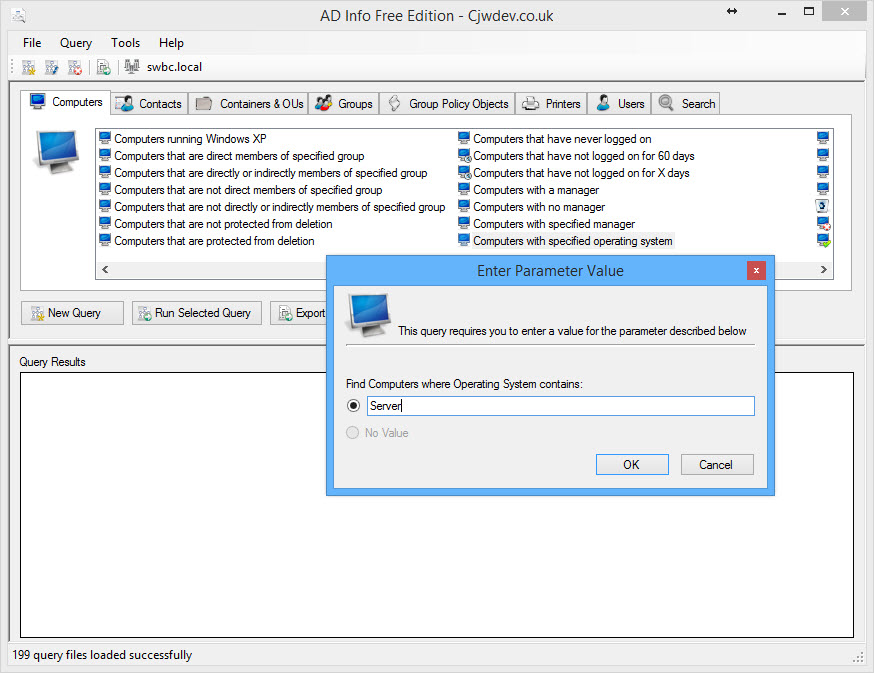
I do this with 2 utilities. The first is AD Info, an awesome reporting utility that even has lots of value in the free version.  http://www.cjwdev.com/Software/ADReportingTool/Info.html. Easily worth $59 for the full version, though. Run a report on Computers, Computers with Specified Operating System. Put in Server, and you'll get a list. Right-click the Name column, and choose Copy Full Column.


Next, ping the list of servers.

Download PingInfoView http://www.nirsoft.net/utils/multiple_ping_tool.html, and paste in the list of server names.


I choose Ping again every 2 seconds, and once I get a list of my servers after 10 pings, I sort by succeeded count, and copy the ones that are responding to ping into Excel. I copy the computer name column, and paste it into notepad and save it as C:\data\servers.txt. This file comes in very handy for not only the next step, but for using in scripting any variety of commands that need to reference a list of servers with something like the import-csv command.

Prepare and Run the command.

I open a command prompt, and set the Screen Buffer Size Height to 9999.


Then I execute the following command, which begins to query the servers.
for /f "tokens=1 delims= " %a in (C:\data\servers.txt) do query session /SERVER:%a
Once the command is done, I just right-click within the command prompt window and choose Select All. I then right-click again, which does a copy. I then paste that into notepad, and do a search on users names.

Note: If you are using privileged accounts (and I hope that you are), then you will need to run your command prompt as the admin user in order to get the proper session information from all the servers.


Tuesday, July 14, 2015

Allow managers to view calendars of their direct & indirect reports - Exchange 2013

I was recently given two tasks and thought I'd share what I came up with to help at least one poor soul out there. 

Task 1: Add permissions for each manager in IT to have reviewer permissions to the calendar of their direct and indirect reports.  I also wanted to check membership of a group that already has permissions and skip them. I came up with the following script, with some caveats.

  1. There are probably cleaner ways of accomplishing the task, but it was simple and worked.
  2. This adds permissions, but does not remove permissions if someone changes manager. Since it is just reviewer permission, and we didn't want to mess with permissions anyone else had already granted to their manager, we accepted that risk.
  3. It only goes 5 levels deep.
  4. Someone can get around this by just assigning their manager a permission level of none.
Clearly this isn't full-proof, but to save some time and get some permissions added, it does okay.

The $MGR grabs the users manager to assign the permission. The $MGRMEM grabs the manager's group membership to see if they are in the group I want to exclude.

get-aduser -filter {department -eq "Information Technology"}|Foreach-Object {
$MGR = (get-aduser -Identity $_.SamAccountName -properties *).manager
$MGRMEM = (get-aduser $MGR -properties *).memberof
$MGR2 = (get-aduser $MGR -properties *).manager
$MGRMEM2 = (get-aduser $MGR2 -properties *).memberof
$MGR3 = (get-aduser $MGR2 -properties *).manager
$MGRMEM3 = (get-aduser $MGR3 -properties *).memberof
$MGR4 = (get-aduser $MGR3 -properties *).manager
$MGRMEM4 = (get-aduser $MGR4 -properties *).memberof
$MGR5 = (get-aduser $MGR4 -properties *).manager
$MGRMEM5 = (get-aduser $MGR5 -properties *).memberof
If (!($MGRMEM -like "*CN=CalendarAdminAccess*"))
{
Add-MailboxFolderPermission ${_}:\Calendar -User $MGR -AccessRights Reviewer
}
If (!($MGRMEM2 -like "*CN=CalendarAdminAccess*"))
{
Add-MailboxFolderPermission ${_}:\Calendar -User $MGR2 -AccessRights Reviewer
}
If (!($MGRMEM3 -like "*CN=CalendarAdminAccess*"))
{
Add-MailboxFolderPermission ${_}:\Calendar -User $MGR3 -AccessRights Reviewer
}
If (!($MGRMEM4 -like "*CN=CalendarAdminAccess*"))
{
Add-MailboxFolderPermission ${_}:\Calendar -User $MGR4 -AccessRights Reviewer
}
If (!($MGRMEM5 -like "*CN=CalendarAdminAccess*"))
{
Add-MailboxFolderPermission ${_}:\Calendar -User $MGR5 -AccessRights Reviewer
}
}

Note: The curly brackets are used to enclose the value {_} because the distinguished name is returned and can have spaces in it.

Task 2: A much simpler task, I was asked to create a group and assign permissions so members of the group are granted Reviewer access to all IT Department calendars, regardless of whether they are in their management chain or not.


get-aduser -filter {department -eq "Information Technology1"}|Foreach-object{Add-MailboxFolderPermission ${_}:\Calendar -User ITCalendarAdminAccess -AccessRights Reviewer}

Note: The group should be a Distribution Group, or a mail-enabled Security Group.

This is pretty simple stuff as far as PowerShell goes, so I know I'm not shocking the world or anything. Just wanted to share in case someone finds it of use.